Drone photo editing tools review
Editing drone photos can really make them pop. Whether you’re just starting out or you’ve been flying your drone for a while, knowing the right tools can make a big difference. This article looks at some of the best ways to improve your drone photo editing, covering everything from basic fixes to more creative effects. We’ll also touch on some free options and paid software that can help you get the most out of your aerial shots.
Key Takeaways
- Correcting lens issues like distortion and vignetting is a good first step in drone photo editing.
- Tools for adjusting perspective, removing unwanted objects, and fine-tuning colors are important for making images look polished.
- Creative effects such as adding atmospheric haze or adjusting light can give drone photos a unique look.
- Advanced features like selective contrast and precise light control help professionals refine their images.
- AI-powered tools can automate tasks like noise reduction and sky replacement, speeding up the drone photo editing process.
Essential Tools For Drone Photo Editing
When you first get your drone photos back, they might look a little… flat. That’s totally normal, especially if you’re shooting in RAW. Think of it like a painter’s sketch – it has all the information, but it needs some work to really pop. Luckily, there are some go-to tools that can fix the most common issues and get your images looking sharp and professional. These are the basics, the things you’ll probably use on almost every single drone shot.
Optics For Distortion And Vignetting Correction
Drone lenses, like most lenses, can sometimes bend light in weird ways. This can lead to two common problems: distortion, where straight lines look curved (think buildings leaning in or out), and vignetting, where the corners of your photo are darker than the center. The Optics tool is your best friend here. It can automatically detect your lens and apply corrections, making those wonky lines straight again and evening out the brightness. It’s especially helpful because drone cameras often don’t have pre-made lens profiles in editing software, so this tool fills that gap.
Transform Tool For Perspective Adjustments
This one is a lifesaver for shots with buildings or other straight-edged subjects. You know how sometimes when you shoot a tall building from below, it looks like it’s leaning backward? The Transform tool lets you fix that. You can straighten out converging lines, adjust the perspective, and generally make sure your buildings stand up straight and tall, just like they do in real life. It’s great for making architectural shots look more grounded and less like they’re about to fall over.
Erase Tool For Unwanted Elements
Let’s be honest, sometimes things just end up in your shot that you don’t want. Maybe it’s a stray power line, a random car in an otherwise perfect landscape, or even just a weird-looking bird. The Erase tool is like a magic wand for cleaning up these distractions. You can select the unwanted object, and the software will intelligently fill in the background, making it look like the object was never there. It’s surprisingly good at blending the edited area with the rest of the image, so your cleanup job looks natural.
HSL Panel For Color Fine-Tuning
This is where you get really granular with your colors. HSL stands for Hue, Saturation, and Luminance. Think of it like having separate controls for every color in your image. Want to make the greens of the grass a bit more vibrant? Or maybe shift the blue of the sky to a slightly different shade? The HSL panel lets you do just that. You can adjust the specific hue (the actual color), the saturation (how intense the color is), and the luminance (how bright or dark the color is) for individual colors like red, orange, yellow, green, aqua, blue, purple, and magenta. It’s incredibly powerful for making subtle but impactful color adjustments without affecting other parts of the image.
Creative Enhancements For Drone Imagery
Sometimes, the raw footage from your drone just needs a little something extra to make it pop. This section is all about those creative touches that can transform a good shot into a great one. We’re talking about tools that let you play with light, atmosphere, and color in ways that go beyond basic adjustments. These features are designed to add artistic flair and mood to your aerial photos.
Relight For Foreground And Background Brightness
Ever looked at a drone shot and thought the foreground was too dark, or the background too bright? The Relight tool is your answer. It lets you independently adjust the brightness of different parts of your image. You can bring out details in shadowy areas or tone down overly bright skies without affecting the rest of the scene. There’s even a ‘Shift’ slider that can subtly move the perceived foreground closer or further away, adding a sense of depth.
Atmosphere For Adding Fog And Haze
Want to give your landscape a more dramatic or moody feel? The Atmosphere tool is perfect for this. You can introduce realistic fog, mist, or haze effects. This is especially useful for softening harsh landscapes, adding depth to distant mountains, or creating a dreamy, ethereal look. It’s a subtle way to change the mood of a scene.
Sunrays For Creative Sun Effects
If your drone shot includes the sun, or even just a bright sky, the Sunrays tool can add some really cool creative effects. You can generate realistic-looking sunbeams or rays emanating from the light source. This tool offers customization, allowing you to control the appearance and intensity of these rays, adding a touch of magic or drama to your image.
Toning For Shadow And Highlight Color Casts
This tool is fantastic for adding a specific color mood to your image. Toning allows you to apply a distinct color cast to the shadows and a different one to the highlights. For example, you could add a cool blue tone to the shadows and a warm yellow tone to the highlights to create a cinematic look, or simply to balance out any unwanted color casts. It’s a powerful way to stylize your drone photos.
Playing around with these creative tools is where the real fun begins. Don’t be afraid to experiment with bold settings at first to see what they can do. You can always dial them back later to achieve a more subtle, natural look. The goal is to find what works best for your specific image and the story you want to tell.
Advanced Professional Editing Features
For those looking to really push their drone photos to the next level, there are some seriously powerful tools available. These aren’t just for quick fixes; they’re for crafting a specific look and feel. You’ll want to spend some time getting to know these, as they can really transform your images.
Supercontrast For Selective Contrast Adjustments
This tool is fantastic for fine-tuning contrast without affecting the whole image. You can adjust the contrast specifically in the shadows, midtones, and highlights. It’s like having separate sliders for each tonal range, giving you a lot of control over the mood and depth of your photo. It’s great for bringing out detail in tricky lighting situations.
Color Harmony For Stylized Color Grading
Color Harmony lets you play with the color balance across your image. You can shift the colors in the shadows, midtones, and highlights independently. This is where you can really start to develop a unique style for your drone photography, whether you want a warm, golden look or a cool, moody vibe. It’s a bit like painting with light and color.
Dodge and Burn For Precise Light Control
Think of Dodge and Burn as digital brushes for light. Dodge lightens areas, and Burn darkens them. This is a classic technique used by photographers for ages, and it’s incredibly useful for drawing attention to specific parts of your drone shot or subtly shaping the light. You can make a building pop or soften a harsh shadow with just a few careful strokes.
Clone Stamp For Seamless Object Removal
Ever spotted something in your drone photo that just doesn’t belong? A stray power line, a random car, or even a bit of unwanted debris? The Clone Stamp tool lets you copy pixels from one area of your image and paint them over another. It’s your go-to for making those distracting elements disappear without a trace, keeping your composition clean and focused.
These advanced tools require a bit of practice, but the results are well worth the effort. They allow for a level of control that can truly set your drone photography apart from the crowd. Don’t be afraid to experiment; that’s how you discover new creative possibilities.
AI-Powered Drone Photo Editing
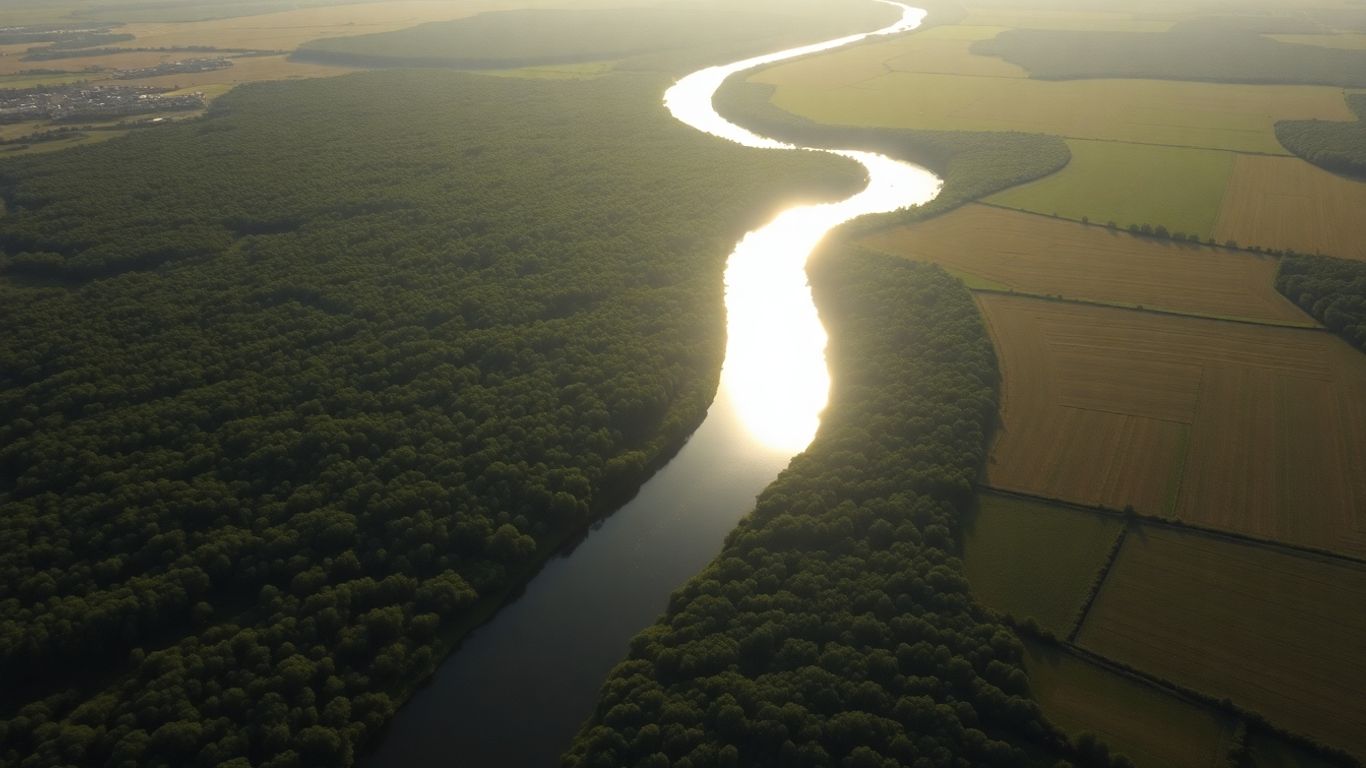
These days, artificial intelligence is showing up everywhere, and photo editing is no exception. For drone photography, AI tools can really speed things up and help you get results that might have taken ages manually. It’s like having a smart assistant that knows what you’re trying to achieve.
Noiseless For Artifact-Free Noise Reduction
Shooting at higher ISOs or in low light can introduce unwanted grain, or noise, into your drone photos. The Noiseless tool is designed to tackle this. It works by analyzing the image and intelligently removing both luminance noise (the grainy stuff) and chromatic noise (those weird color splotches). The goal here is to clean up the image without making it look plasticky or smudged, which can happen with simpler noise reduction methods. It’s pretty good at keeping details sharp while still getting rid of that distracting noise.
Sky Replacement For Dramatic Skies
Drone shots often have expansive skies, and sometimes they’re just a bit… boring. The Sky Replacement tool uses AI to let you swap out a dull sky for something more dramatic. You can pick from a library of skies or even use your own. The AI figures out where the sky is and masks it for you. Then, you can tweak things like the sky’s color, brightness, and how it blends with the rest of the scene. It’s a quick way to add a lot of mood to your photos.
Accent And Sky Enhancer Sliders
These sliders are pretty straightforward but can have a big impact. The Accent slider usually brightens and adds a bit of pop to the main subjects in your photo, making them stand out. The Sky Enhancer slider, as the name suggests, specifically targets the sky, boosting its contrast and saturation to make it more vibrant. Used together, they can quickly bring a flat drone photo to life.
AI tools in this category are generally about making common, time-consuming edits much faster. They identify key parts of an image, like skies or subjects, and apply adjustments automatically. While they do a lot of the heavy lifting, most good AI editors still let you fine-tune the results to make sure the edit looks natural and fits your vision.
Specialized Adjustments For Drone Photos
Sometimes, even after you’ve got the basics down, drone photos need a little something extra. That’s where these specialized tools come in handy. They’re designed to tackle specific issues or add unique looks that really make your aerial shots pop.
Dehaze For Sky Contrast and Saturation
This tool is a lifesaver for those hazy, washed-out skies you sometimes get from altitude. Dehaze works by increasing contrast and saturation, making the sky look more dramatic and defined. It can also help cut through atmospheric haze in landscapes, bringing out details you might have missed. It’s not just for skies, though; it can add punch to any part of your image that feels a bit flat.
Golden Hour For Warm Lighting Effects
Ever wish you could bottle that magical warm light of sunrise or sunset? The Golden Hour tool lets you do just that. It applies a warm color cast, starting from the sun’s position and spreading outwards. You can adjust the intensity and spread to create a cozy, inviting feel, perfect for landscapes or even architectural shots taken at the right time of day. It’s a quick way to add a professional touch.
Foliage Enhancer For Vegetation Color Shifts
If your drone shots often feature trees, fields, or forests, the Foliage Enhancer is your new best friend. This tool specifically targets vegetation, allowing you to shift the hue of greens and other plant colors. You can make the leaves look richer, more vibrant, or even give them a slightly different tone for artistic effect. It’s great for bringing out the best in natural scenes without affecting the rest of the image. You can adjust:
- Hue shift for greens
- Saturation boost for foliage
- Luminance adjustments for plant details
These specialized adjustments are like having a set of fine-tuning tools in your kit. They don’t drastically alter the image but add those subtle, yet impactful, refinements that separate a good photo from a great one. Playing around with them can really help you develop your unique editing style and make your drone photography stand out.
It’s worth noting that while these tools are powerful, a little goes a long way. Overdoing it can make your photos look unnatural. Think of them as the final polish, not the main event. For more on general editing techniques, check out this guide to drone photo editing.
Portrait Retouching For Drone Subjects
While drone photography often focuses on landscapes and architecture, sometimes you might capture a person in the frame. When that happens, having a few tools to polish up the portrait can make a big difference. These features are usually tucked away, but they can be surprisingly effective for making subjects look their best without going overboard.
Bokeh Control For Background Defocus
This tool is all about managing the background blur. You can adjust how much the background is softened, which is great for making your subject pop. Think of it like controlling the depth of field after the shot. You can tweak the intensity of the blur and even how it looks, giving you a lot of creative say over the final image’s feel. It’s handy for making sure the focus stays right where you want it.
Skin Retouching Sliders
These sliders are designed for quick touch-ups. They can help smooth out skin texture, reduce the appearance of minor blemishes, and generally give the skin a more even tone. It’s not about completely changing someone’s appearance, but more about cleaning up the image so the person looks fresh and natural. You can often adjust the strength of these effects, so you don’t end up with that overly airbrushed look.
Facial Light And Slimming Tools
These are pretty straightforward. The facial light tools let you subtly adjust the brightness and direction of light on a person’s face, which can help define features or correct unflattering shadows. The slimming tools are for making very minor adjustments to facial shape, like subtly refining a jawline or cheekbones. Use these sparingly, as too much can look unnatural.
It’s important to remember that these portrait tools are often best used with a light touch. The goal is usually to enhance the existing image, not to create something entirely artificial. Subtle adjustments can make a subject look more polished and professional, especially when dealing with images that might have been taken quickly or in less-than-ideal lighting conditions.
Here’s a quick look at what you might find:
- Smooth Skin: Reduces skin texture and minor imperfections.
- Blemish Removal: Targets and removes small spots or marks.
- Brighten Eyes: Adds a subtle sparkle or brightness to the eyes.
- Whiten Teeth: Lightens teeth for a cleaner look.
- Face Shape Adjustment: Minor tweaks to jawline, cheekbones, or nose.
- Light Direction: Simulates changing the direction of light on the face.
Exploring Free And Subscription Options
When you’re editing drone photos, figuring out the right software can feel like a puzzle. You’ve got the free options, which are great for starting out, and then there are the subscription services that offer a lot more power. It really comes down to what you need and what you’re willing to spend. Finding the right balance between cost and capability is key.
RawTherapee For Powerful Free Editing
RawTherapee is a solid choice if you’re looking for a free program that can handle RAW files from your drone. It’s got a lot of controls, similar to what you’d find in more expensive software. You can tweak exposure, colors, and sharpness quite a bit. It might take a little time to get used to all the options, but the results can be really good. It’s the kind of tool where you can really dig into the details of your image.
- RAW File Support: Works with a wide range of camera RAW formats.
- Advanced Controls: Offers detailed adjustments for color, exposure, and detail.
- No Cost: Completely free to download and use.
Adobe Lightroom CC For Cloud Editing
Lightroom CC is a popular choice, especially if you like the idea of your photos being accessible from anywhere. It uses a subscription model, which some people aren’t a fan of, but it does mean you always have the latest version and cloud storage. It’s great for organizing large photo libraries and making quick edits. The syncing across devices is pretty handy for a lot of users.
- Cloud Sync: Access your photos and edits on any device.
- Organization Tools: Powerful cataloging and tagging features.
- Subscription Model: Requires a monthly or yearly fee.
Luminar Neo For All-In-One Workflows
Luminar Neo has been making waves as a program that tries to combine a lot of editing power into one package, often at a more affordable price than some of the big names. It’s known for its AI-powered tools that can do things like sky replacement or remove unwanted objects with just a few clicks. You can get it as a one-time purchase or a subscription, which gives you some flexibility. It aims to simplify the editing process, which is nice when you’ve got a lot of drone footage to sort through.
Luminar Neo is designed to make complex edits feel simpler. Its AI features can speed up your workflow significantly, letting you focus more on the creative side of things rather than getting bogged down in technical adjustments. It’s a good option if you want powerful tools without a steep learning curve.
| Feature | Pricing Model |
|---|---|
| RawTherapee | Free |
| Adobe Lightroom CC | Subscription |
| Luminar Neo | One-time or Subscription |
Wrapping Up Your Drone Photo Editing Journey
So, after looking at all these tools, it’s clear there’s a lot out there to help make your drone photos look even better. Whether you’re just starting out and need something simple, or you’re a pro looking for advanced features like AI sky replacement or detailed retouching, there’s an option for you. Many programs now offer a good mix of features, sometimes combining what used to take multiple programs. Don’t be afraid to try out the free trials or the free software options first. You might find exactly what you need without spending a fortune. Ultimately, the best tool is the one that fits your workflow and helps you get the look you want for your aerial shots. Happy editing!
Frequently Asked Questions
What are the most important tools for drone photo editing?
For drone photos, you’ll want tools that can fix lens issues like distortion and dark corners (vignetting). A transform tool is great for straightening out buildings or tilted horizons. An erase tool helps remove unwanted things like power lines or distracting objects. And the HSL panel lets you precisely change specific colors, like making a blue sky pop or a green field richer.
How can I make my drone photos look more creative?
You can add cool effects to make your drone shots stand out! Tools like ‘Relight’ can brighten up parts of your photo, while ‘Atmosphere’ can add realistic fog or haze for a moodier feel. ‘Sunrays’ can create dramatic light beams, and ‘Toning’ lets you add specific color tints to the dark and bright areas for a unique look.
What are some advanced features for professional drone edits?
Professionals often use tools like ‘Supercontrast’ to carefully adjust the brightness in shadows, mid-tones, and highlights separately. ‘Color Harmony’ helps create a specific color style for the whole image. ‘Dodge and Burn’ allows for very precise lightening and darkening of small areas, and the ‘Clone Stamp’ is perfect for seamlessly removing or replacing objects.
How does AI help with editing drone photos?
Artificial intelligence (AI) can do some amazing things! ‘Noiseless’ uses AI to clean up grainy photos without making them look artificial. ‘Sky Replacement’ lets you swap out a dull sky for a much more dramatic one with just a few clicks. AI tools can also automatically enhance colors and details, saving you a lot of time.
Are there special tools for drone landscape shots?
Yes! The ‘Dehaze’ tool is fantastic for bringing back contrast and color, especially in hazy skies. ‘Golden Hour’ can add a warm, beautiful light effect like you’d see during sunset or sunrise. And the ‘Foliage Enhancer’ is great for making greens in trees and grass look more vibrant and natural.
What are some good free or affordable drone editing options?
If you’re on a budget, ‘RawTherapee’ is a powerful free program that offers a lot of control. For cloud editing and syncing across devices, ‘Adobe Lightroom CC’ is a popular choice. ‘Luminar Neo’ is another great option that combines many editing tools into one program, often with flexible pricing plans.